
Before You Start

Activate Coverage
Activate the 1-year manufacturer's warranty and TouchPoint Care. Don't wait! Product coverage must be activated within 30 days of receiving your TouchPoints.
Activate Coverage →
Safe Handling
A little safety and care can go a long way in helping you stress less and live more. Take a deep breath, relax, and let these safety & care instructions be your guide.
Learn More →Getting Started
What's in the Box


Assembly


Charging Your TouchPoints
Plug the included dual-pronged charging cable into a USB adapter or computer (computer must be powered on). A red light means the TouchPoint is charging. Leave it plugged in until the red light turns off.
For more info on charging, see our Safety & Care page.
Using TouchPoints
See the step-by-step guide below to pair your devices and start your first session.
Modes & Uses

Blue
The first and slowest speed on your TouchPoints. Recommended to improve sleep, or meditate.
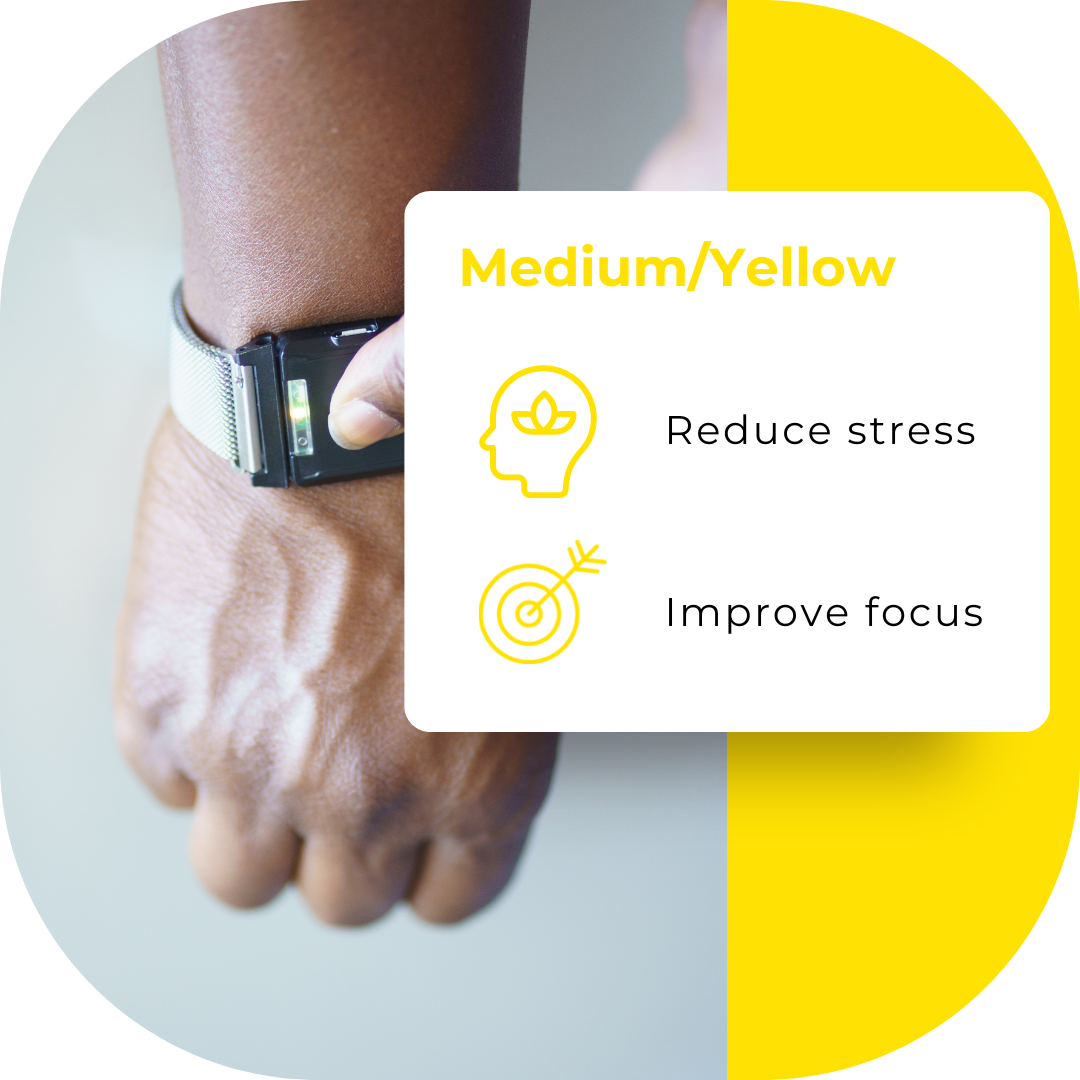
Yellow
The second and medium speed on your TouchPoints. Recommended to reduce stress and improve focus.

Purple
The third and fastest speed on your TouchPoints. Recommended to manage anger and reduce agitation.

Green
A standby light that displays when the follower device is searching for the lead to pair with. Once paired, the light changes to the lead's setting. It also briefly displays before each TouchPoint powers off.

Red
Displays while TouchPoints are charging, and disappears once fully charged. If a TouchPoint shows red while off the charger, it needs to be charged.
Key

Lead Device (L)
First device powered on. Used to select the setting.
Follower Device (F)
Second device powered on. Mimics the setting from the lead.
Either device can be a lead or follower based on which one is powered on first. The lights on your TouchPoints help you sync your devices to the preferred setting and know when they're charging.
Step-by-Step Guide

Press the button on the lead device twice to turn on and activate the blue setting.

Face the lights of both TouchPoints together and press the button on the follower device once. The follower's light will match the lead's color, and the devices will vibrate in an alternating pattern.

If desired, change settings by pressing the button on the lead device again while both TouchPoints' lights are facing each other.

Place one TouchPoint on each side of the body and feel the calming vibrations. Most people wear TouchPoints for about 20 minutes in the morning or evening, or as needed throughout the day.

To manually turn off, hold the TouchPoints away from each other and press the button on each until you see the green light. Devices also auto-shut-off after 30 minutes.
When to Use TouchPoints
TouchPoints are intended to be used as needed throughout the day for whatever sensory moment you're in — for a short duration to spot-support overwhelm, or worn longer to help prevent it before it builds.
During Sensory Overload
Use TouchPoints when sounds, lights, textures, or a busy environment start to feel like too much. Putting them on as things start to build — not just once overwhelm hits — can help.
Through Transitions
Changes in routine, new environments, or moving between activities can be hard to navigate. TouchPoints can offer steady, passive support through the shift.
During Focus-Demanding Moments
Homework, tests, or busy classroom moments can be hard to sustain attention through. TouchPoints may help support focus and concentration when it's needed most.
Wearing TouchPoints for 15–30 minutes can leave a lasting effect in helping you feel more regulated throughout the day, even after they're off. TouchPoints' BLAST® technology works by helping create new neural pathways that can support the nervous system's response to sensory input — building over time with regular use.
Over time, using TouchPoints in shorter sessions throughout the day can help support self-regulation even when they're not being worn. This approach is also gentler on the devices and helps you better understand and manage your own sensory patterns.
Where to Wear
There are lots of ways to wear your TouchPoints, as long as you place one on the right and one on the left side of your body. They don't need to touch the skin as long as you can feel the vibrations. Shop accessories for more ways to wear them.


FAQ
Watch more videos on our TouchPoints channel here.
If it feels like your TouchPoints aren't helping, it could be that they're not on the setting that works best for you — try cycling through the settings to find the right one.
If you're in a moment of significant overwhelm, it may take longer than usual to notice a difference — leave your TouchPoints on and reassess every minute or two.